Jaime E. Villate University of Porto, Portugal
July 21, 2025
1 Introduction
Maxima is a Free Software package for the
manipulation of symbolic and numerical expressions, including
differentiation, integration, Taylor series, Laplace transforms,
ordinary differential equations, systems of linear equations,
polynomials, sets, lists, vectors, matrices and tensors and more. It
can be freely downloaded from its Website
(https://maxima.sourceforge.net) which also includes reference
manuals and tutorials in several languages. There is an active
community of developers and users; questions about Maxima can be sent
to its main mailing-list address at
maxima-discuss@lists.sourceforge.net.
Maxima is one of the oldest Computer Algebra Systems (CAS). It was
created by MIT's MAC group in the 1960s and it was initially called
Macsyma (project MAC's SYmbolic MAnipulator).
Macsyma was originally developed for the
DEC-PDP-10 large-scale computers that were used in various academic
institutions at that time.
In the 1980s, its code was ported to several new platforms and one of
those derived versions was called Maxima. In 1982 the MIT
decided to sell Macsyma as proprietary software and
simultaneously Professor William Schelter of the University of Texas
continued to develop the Maxima version. In the late 1980s
other proprietary CAS systems similar to Macsyma appeared,
such as Maple and Mathematica. In 1998, Professor
Schelter obtained authorization from the DOE (Department of Energy),
which held the copyright for the original version of
Macsyma, to distribute the source code of Maxima
as free software. When Professor Schelter passed away in 2001, a
group of volunteers was formed to continue to develop and distribute
Maxima as free software.
In the case of CAS software, the advantages of free software are very
important. When a method fails or gives very complicated answers it is
quite useful to have access to the details of the underlying
implementation of the methods used. On the other hand, as one's
research and teaching becomes dependent on the results of a CAS, it is
desirable to have good documentation of the methods involved and its
implementation and to be assured that there are no legal barriers
forbidding the examination and modification of that code.
2 Graphical interfaces for maxima
Maxima is a program that uses a command shell (or a console or text
terminal) to interact with the user. There are also several graphical
interfaces to work with Maxima, such as wxMaxima, which is a
software package separate from Maxima; you might have to install that
package separately, if it's not bundled to the package you download to
install Maxima. Two other graphical interfaces, imaxima and
Xmaxima, are being developed and distributed together with
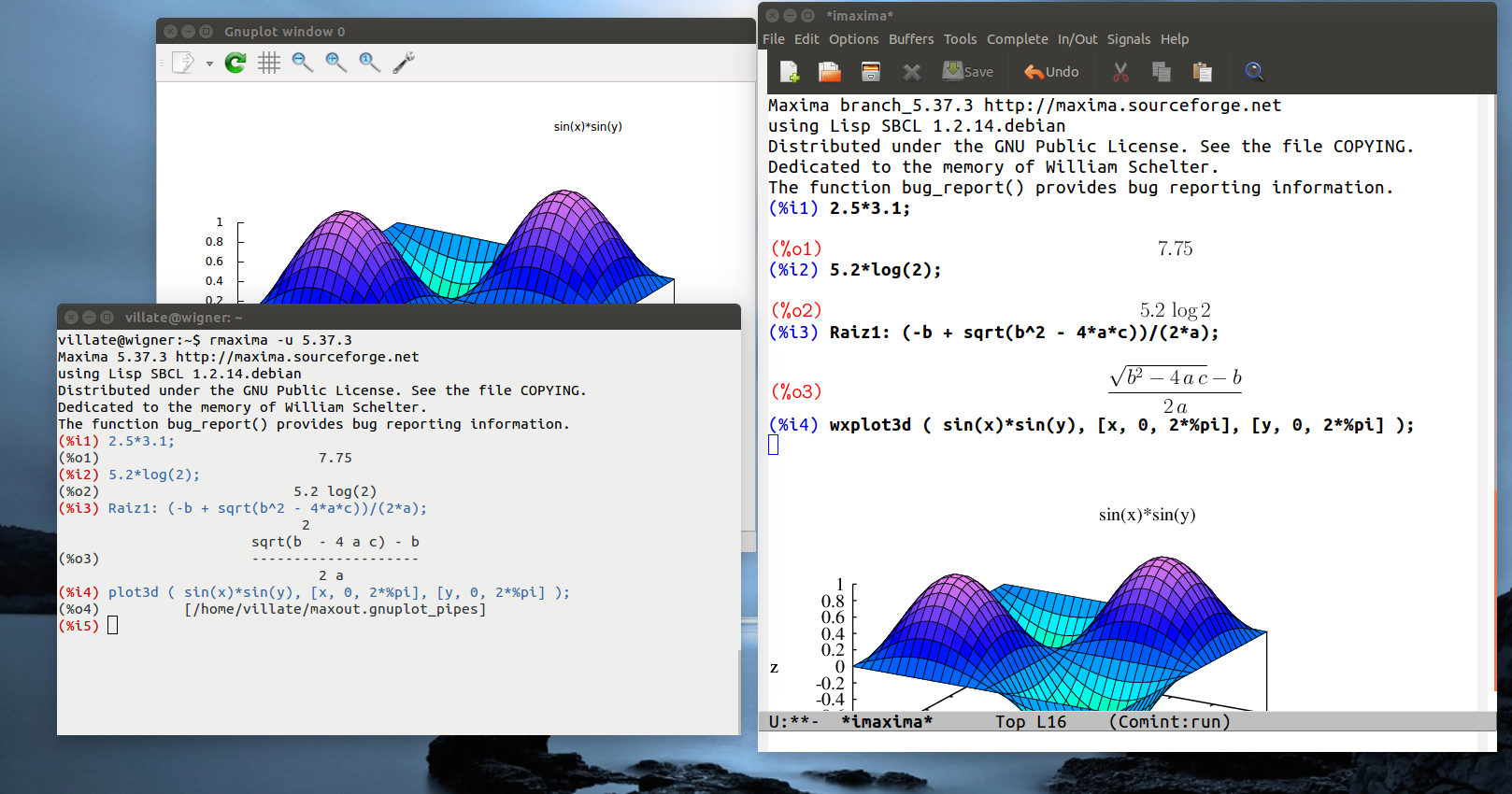
Maxima. The left-hand side of Figure 1 shows some
commands being run in Xmaxima, and the right-hand side shows the same
commands as being run in imaxima, which runs from within the
Emacs text editor
Figure 1: Xmaxima's graphical interface.
The graphical interfaces connect to the Maxima program, send the
commands that the user types to Maxima, and show the result it
returns. Some interfaces, such as wxMaxima and imaxima, convert those
results to a graphic that resembles closer what the user would find in
a textbook, while Xmaxima leaves the result as given by Maxima, namely
simple text that can take several lines in the case of fractions,
powers or long output.
Xmaxima usually opens two windows (Figure 1). One of
them, called the browser, shows a tutorial and allows the
user to read the manual or other Web pages. The second window is the
console, where Maxima commands should be written and their
output will appear.
In the "Edit" menu there are options to navigate the list of
previous commands ("previous input") or to copy and paste text; some
options in the menus can also be accessed with the shortcut keys shown
next to them. Different colors are used to distinguish commands that
have already been processed (in blue) from the command that is being
written and has not yet been sent to Maxima (in green); the results
are shown in black (see Figure 1).
When changing a command already executed or when starting a new
command, care must be taken that what is being written appears in
green or blue, to ensure that it will be sent to Maxima. Sometimes it
may be necessary to use the options "Interrupt" or "Input prompt",
in the "File" menu to recover the state in which Xmaxima is
accepting commands.
It is also possible to move the prompt symbol to some older entry in
the screen (in blue), change it, and press enter to repeat the same
command with the modifications.
3 Data input and output
When a Maxima session starts, the tag (%i1) will appear, which
refers to input 1. A valid command should be written next to
that tag, ended with a semi-colon and when the enter key is pressed,
that input will be parsed, simplified, linked to an internal variable
%i1 and its result will be shown following a tag (%o1),
referring to output 1. That result will also be linked to an
internal variable %o1. Another tag (%i2) will then
appear, to mark the place where a second command may be written and so
on. The most basic usage of Maxima is as a calculator, as in the
following examples.
The result in %o2 shows two important aspects of
Maxima. First, the natural logarithm of 2 was not computed, because
its result is an irrational number which cannot be represented exactly
with a finite number of numerical digits. The second important aspect
is that the symbol * which is always required when a product is
entered and the parenthesis, which have to be used to specify the
argument of a function, were not included in the output. That happened
because, by default, the output is shown in a mode called display2d,
in which the output tries to resemble the way mathematical expressions
are usually shown in books. The expression "5.2 log 2" most
probably will be interpreted correctly by a reader, as the product of
5.2 times the logarithm of 2; however, if that same ambiguous
expression was given as input to Maxima it would trigger an error,
because Maxima syntax requires an operator between 5.2 and the
logarithm function, and the argument of the logarithm must be inside
parenthesis. In spite of the form of the output, variable %o2
has been linked to an expression with correct syntax, so it can be
reused in later Maxima commands without syntax errors.
To look up the documentation of a function or special variable in the
manual, for instance the function log that was just used, the
describe function is used, which can be abbreviated with a question
mark followed by space and the name of the function:
(%i3)? linel;
-- Option variable: linel
Default value: '79'
'linel' is the assumed width (in characters) of the console display
for the purpose of displaying expressions. 'linel' may be assigned
any value by the user, although very small or very large values may
be impractical. Text printed by built-in Maxima functions, such as
error messages and the output of 'describe', is not affected by
'linel'.
There are also some inexact matches for `linel'.
Try `?? linel' to see them.
(%o3) true
4 Numbers
Maxima accepts real and complex numbers. Real numbers in Maxima can be
integers, rationals, such as 3/5, or floating-point numbers, for
instance, 2.56 and 25.6e-1, which is a short notation for
. Irrational numbers, such as sqrt(2) or
log(2) (natural logarithm of 2) are left in that form, without
being approximated by floating-point numbers, and later calculations,
such as sqrt(2)*sqrt(2) or exp(log(2)) will lead to the exact
result 2.
Floating-point numbers are "contagious"; namely, the operations in
which they enter will be carried out in that format. For example, if
instead of writing log(2) we would write log(2.0), the
logarithm would be computed approximately in floating-point. Another
way to force an expression to be computed as a floating-point number
consists on using the function float. For instance, since the
result (%o2) above has been stored in variable %o2, to get a
floating-point approximation of that result we would write:
(%i4)float (%o2);
(%o4) 3.6043653389117156
The function float computed the product approximately,
using 16 significant digits in floating-point format. The
floating-point format used in Maxima stores each number in 64 binary
bits, which leads to between 15 and 17 significant digits when
expressed in decimal base. That format is known as double precision.
A frequent source of confusion arises from the fact that those numbers
are being represented internally in binary base and not in decimal
base; thus, certain numbers that can be represented in decimal base
with a few digits, for instance 0.1, would need an infinite number of
binary digits to be represented accurately in binary base. It is the
situation as with the fraction 1/3 in decimal base, which in
floating-point form has an infinite number of digits: 0.333…,
while in base 3 that fraction would simply be 0.1.
The fractions that lead to an infinite number of digits are not the
same in the decimal and binary base. Consider the following results,
which would appear in any system that uses binary base and
double-precision format and which might puzzle somebody used to
working with in decimal base:
Some computing systems ignore the last digits in the results obtained
from double-precision calculations, showing the result as 0.6, but
whenever binary double-precision is used, the result of 6×0.1 will not
be exactly 0.6.
The best approximation of 1/3 in decimal base, using only 3
significant digits, is . In binary base, it is
represented as ( and integers); with the 52 significant
digits used in the double-precision standard, has to be less than
. Maxima's function rationalize shows the approximate
representation being used for a number, in the form of a fraction. For
instance the approximation to is
where 3602879701896397 is less than and bigger than ,
and the denominator is a power of 2 (). That
fraction is not exactly equal to , but it is the best possible
approximation using double-precision.
There is a Maxima specific format which accepts bigger number of
significant digits to represent floating-point numbers, called
bigfloat. To use it, one should write "b", instead of
"e" for the exponents; for example, , written as
2.56e20 would be represented internally in double-precision format,
with 16 significant digits, and any calculations made with it would
result in other double-precision numbers. But if the same number was
written as 2.56b20, it would be stored in the bigfloat format and any
calculations involving it would produce other bogfloat numbers. By
default, bigfloat format uses the same 16 significant digits as
double-precision, but that can be changed by changing the value of the
system variable fpprec (floating-point precision).
Function bfloat converts a number into bigfloat. For example,
to show an approximation to the result save in variable %o2
with 60 significant digits, the following commands can be used:
The letter b followed by zero at the end of (%o9) means that the
number is stored in bigfloat format and it should be multiplied by a
factor of .
In the rest of this tutorial we will show all floating-point results
with only 4 significant digits. That is achieved by changing system
variable fpprintprec from its default value of 0 to 4:
(%i10)fpprintprec: 4;
(%o10) 4
Internally, all floating-point double-precision numbers will continue
to have 16 significant digits and bigfloat numbers will have the
number of significant digits set by fpprec, but whenever a
number has to be printed in the screen, it will be rounded to 4
significant digits. If we would like to see all the significant digits
stored internally, variable fpprintprec should be set to its
default value of 0.
5 Variables
To bind a numerical value or other objects to a variable, we use a
colon ":" and not the equal sign "=" which is reserved to define
mathematical equations. The name of the variables can be any
combination of letters, numbers and the characters % and _, but the
first character cannot be a number. Maxima is case sensitive. Here are
some examples:
variables a, b, c and Root1 were bound to
the numerical values 2, , and 2, while variable d was
bound to an expression.
Notice that input (%i11) was ended with a dollar sign $,
rather than a semi-colon. That will make the command to be executed
without showing its result on the screen. In spite of not being
displayed on the screen, that result has been bound to the symbol
%o11 so it can be used later on.
Input (%i12) shows how to bind several variables to several
values with a single command. When the name of a variable is written,
as in input (%i13), the output will be the value bound to
that variable or the name of the variable itself if it has not been
bound to any value. In (%i14), the values bound to
a, b and c were replaced and the result was
bound to variable Root1. If the values bound to
a, b or c are later changed, that will not affect
the value already bound to Root1.
In (%i15) since z has not yet been bound to any
value, it is just a symbol and variable d is then bound to
an expression that depends on that symbol. Variables can be bound
to numerical values, expressions with abstract symbols, equations and
several other objects that will be described in the following
sections. That means that when you add two variables, you could be
adding a mix of numbers, expressions, equations and so on; the result
could lead to some other valid object or to an error it Maxima can not
sum those objects.
To remove the value bound to a variable, the function remvalue
can be used; in the following example the value bound to a
is removed and an expression that depends on the symbol a is
then bound to Root1:
(%i16)remvalue (a)$(%i17)Root1: (-b + sqrt(b^2 - 4*a*c))/(2*a);
sqrt(16 a + 4) + 2
(%o17) ──────────────────
2 a
The command remvalue(all) removes all
values bound to variables
The following 2 commands will show the value obtained from the
expression bound to Root1, when a is replaced by 1 and
the result is approximated to a floating-point number.
The objects associated to a and Root1 are not modified
after (%i18); a continues to be an abstract symbol
and Root1 is associated to an expression that depends on the
symbol a.
Maxima uses several system variables, whose names start by %. Some
examples are the variables %i2 and %o2, linked to an
input command and its result. The character % itself
represents the last result obtained. For instance, in (%i19)
it would have been enough to write down % instead of
%o18. The two commands (%i18) and (%i19) could
have been combined into a single command
float (subst (a=1, Root1)).
A variable can also be associated to an algebraic equation, as in the
following example
(%i20)second_law: F = m*a;
(%o20) F = a m
Maxima does some simplifications to the input commands before executing
them. In this last example, the result of that
simplification was to change the order of the product,
to put the two symbols in alphabetical order. If any of the 3 symbols
F, m or a were associated to a value or other
object, that object would have been substituted by the simplifier. To
prevent the value of a variable to be replaced, its name can be
preceded by an apostrophe ('a refers to the symbol a and not to
any object associated to it).
The following example shows how the equation associated to
second_law does not change when one of the symbols in it s then
associated to a value
(%i21)a: 3;
(%o21) 3
(%i22)second_law;
(%o22) F = a m
The function subst is used to substitute values of the symbols
in second_law. Several values can be replaced at once, as in
the following example
(%i23)subst([m=2,'a=5], second_law);
(%o23) F = 10
The first argument in the subst command in (%i23) is a
list, whose elements are separated by commas and within square
brackets. The two elements in that list are equations. In the second
equation 'a was quoted to prevent it from being replaced by the
value 3 associated to symbol a. Without the quote, the
subst command would have been simplified as
(%i24)subst([m=2, 3=5], second_law);
(%o24) F = 2 a
and then only m is replaced and the statement "3=5" is simply
ignored because it does not name any variable in the expression where
the substitution is done.
6 Lists
As seen in the previous section, lists can be created using square
brackets and commas. The following example creates a list with the
squares of the first five natural numbers and associates it to the
variable squares
(%i25)squares: [1, 4, 9, 16, 25]$
Many of the operations among numbers can also
be done among lists. For example, let us create another list in which
each element is the square root of the corresponding element of
squares, multiplied by 3
(%i26)3*sqrt(squares);
(%o26) [3, 6, 9, 12, 15]
The elements of a list are indexed by integers starting with 1. To
refer to an element in the list, the corresponding index is written
within square brackets; for instance the third element in the list
squares is
(%i27)squares[3];
(%o27) 9
A very useful function to create lists is makelist. One way to
use it is to expand an expression depending on a dummy index, for
several values of that index. The first argument must be the
expression to be expanded, followed by the dummy index, the initial
value for it, the upper bound for the index values and the increments
between successive values of the index. If the increment is not given,
its default value is 1. Here are two examples:
The first list has the cubes of 1, 2, 3, 4 and 5. The second one has
the cubes of 2, 2.6, 3.2, 3.8, 4.4, 5.0 and 5.6. Notice that the
elements of cubes2 are shown with only 4 significant digits,
because in (%i10) we changed the value of the system variable
fpprintprec. In a fresh Maxima session they would be shown with
16 significant digits.
Instead of giving an initial value and an upper bound for the dummy
index, we can give a list of values for it. And that list can have
objects of different types. The following example creates a list with
the cubes of 5, the expression , (in bigfloat
format) and the equation
(%i30)makelist (i^3, i, [5, x^2+sqrt(y), -3.2b0, E=m*c^2]);
2 3 3 3
(%o30) [125, (sqrt(y) + x ) , - 3.277b1, E = 4096 m ]
7 Useful constants
There are some system variables associated to predefined mathematical
constants. Most of them have names starting with %. Three of those
variables are %pi (, the length of a circumference
divided by its diameter), %e, the Euler number , base of
the natural logarithms, and %i, which is the imaginary number
. Functions float and bfloat produce
floating-point approximations of %pi and %e.
The following example computes the product between two complex numbers
written using variable %i.
Function rectform, which stands for rectangular form,
would show the previous result separating the real and imaginary
parts:
(%i32)rectform(%);
(%o32) 23 %i - 14
8 Batch files
The command
stringout("filename",input)
will store all the input commands that have been entered during a
Maxima session, into a file named "filename". That file can be
loaded in a future Maxima session, to redo all those commands, with
the command batch("filename"). The name
of Maxima batch files are usually given the extension
.mac to identify them as Maxima batch files.
You can also create a Maxima batch file with a text editor. Just write
the input commands (without any %i labels) and then
execute it in Maxima with
batch("filename"). That is a useful way
to use Maxima to solve a problem. You write your commands to solve the
problem in a text editor, save them into a file, and without closing
the editor open Maxima in another window and run that file. If there
is an error or you don't get the result you wanted, you just have to
go back to the editor window, make the necessary modifications, save
them and back in the Maxima window rerun the batch file. Be careful
not to use %o variables in batch files, because the number
after %o might be different every time you execute them.
Many additional functionalities of Maxima come into batch files which
you execute in Maxima using
load("filename"). The difference between
batch and load is that load will not show the
result of the commands being executed. Both commands have a predefined
list of directories where they will look for the file with name
"filename".
Batch files can include any comments, opening with the two characters
/* and closing with */. Any commands entered directly
into Maxima or written into a batch file
can contain blank spaces and new lines between numbers, operators,
variables and other objects, in order to make them more
readable.
Some commands that are used repeatedly in different working sessions,
for instance, the definition a frequently used function, can be placed
inside a batch file which can be loaded in future sessions. If the
name of a batch file to be loaded does not include a complete path but
just the file name and that file name does not exist in the current
directory, Maxima will look for it in a set of directories. That set
of directories includes a sub-directory of the users home
directory. The name of that sub-directory can be different in
different systems but it is always stored in Maxima's system variable
maxima_userdir. You can look at the value of that variable and
if the referred sub-directory does not exist, created them. Any batch
files you put into that sub-directory can then be loaded into Maxima
by giving its name, independently of the working directory being used
in the current Maxima session.
Every time Maxima starts it tries to load a user's batch file in that
maxima_userdir, with the name maxima-init.mac, before
showing the first input prompt. That means that you can create that
file, if it doesn't already exist, and add commands that you want to
be used in all your Maxima sessions. For example, the contents of file
maxima-init.mac could be the following
ratprint: false$

linel: 66$
The first command prevents Maxima from showing warning messages every
time a floating-point number is replaced by a fraction, something many
Maxima functions do, and the second command limits the maximum length
of output lines to 66 characters. In a Linux system that
file would be located in /home/username/.maxima/ and in
Windows, in a folder maxima within the user's directory.
Any other valid Maxima commands can be placed into that file, but keep
in mind that if any of those commands fail, the error might prevent
Maxima from starting until that initial batch file is corrected.
9 Algebra
Expressions can include mathematical functions, such as the function
cosine in the following example
(%i33)3*x^2 + 2*cos(t)$
Those expressions can then be manipulated producing new
expressions. In the next example we find the square of the expression
above and add to it
(%i34)%^2 + x^3;
2 2 3
(%o34) (3 x + 2 cos(t)) + x
As we have already mentioned besides numbers and expressions, other
kind of object we can manipulate is an equation as the following one
(%i35)3*x^3 + 5*x^2 = x - 6;
3 2
(%o35) 3 x + 5 x = x - 6
Most functions used to manipulate expressions can also be used for
equations. For example, Maxima's function allroots finds a
numerical approximation to the roots of a polynomial, such as
; if allroots is given the equation , it will
interpreted as and find the roots of . Therefore,
when given the expression in %o35, allroots will find
the roots of
(%i36)allroots(%o35);
(%o36) [x = 0.9073 %i + 0.2776, x = 0.2776 - 0.9073 %i, x = - 2.222]
Two of those roots are complex numbers. The three roots are shown as
a list of three equations, instead of just numbers. That way of
presenting the result may seem odd, but it will prove convenient to
interact with other functions of Maxima. For example, to
check that the third root shown is in fact a root of the polynomial
, we write
The notation %o36[3] means the third element in the list
associated to variable %o36, which is the equation
and it is exactly what we need to tell subst to substitute
by . It is in fact substituted to by
which is the value stored in list %o36; the output (%o36) is
the exact result rounded to 4 significant digits, since set the number
of displayed digits for floating-point numbers equal to 4 in
(%i10). The floating-point values in the list bound to
%o36 all have approximately 16 digits (the default for
double-precision binary numbers). The result (%o37) is not
zero, because allroots is a numerical algorithm and its results
have a numerical error which in double-precision is of the order of
.
There are other functions to find the exact solution to an algebraic
equation without numerical approximations. Function solve can
find the exact solutions to some algebraic equations or systems of
algebraic equations (see the documentation for solve if you
would like to know the type of equations that it can solve). In the
case of equation (%o35), the exact algebraic expressions for
the three solutions in %o36 can be found with:
(%i38) result: solve ( 3*x^3 + 2*x^2 = x - 6, x )$
Since the result is very lengthy, we didn't show it on the screen but
saved it into the list result. The third root is the 3 element
of that list, which can be written in a simpler form using one of the
simplifying functions for algebraic equations. In the next 3 commands
we will use three of those simplifying functions.
Which of the 3 previous expressions is simpler is just a matter of
taste; they are all equivalent. Thus, when simplifying algebraic
results you should try with those different functions and choose the
result that you like the most. In this case functions ratsimp
and factor gave the same result, but in other cases they might
give different results. There are other simplifying functions; one
that is also used often is radcan.
You can also try to look at the two complex roots in result,
using function rectform to separate the real and imaginary
parts.
Systems of linear equations and some nonlinear systems can also be
solved using solve. The two equations must be given into a
list, as in the following example
There are two features of solve involved in the previous
example. First, instead of 2 equations, we provided two expressions;
every expression given to solve is then interpreted as that
expression being equal to zero. Second, there is an optional argument,
after the equations, with the variable or list of variables to be
solved; if given, the number of variables must be equal to the number
of equations. In the examples we have given there is no need to name
the variables, because those variables are the only ones that appear
in the equations. However, in some cases the name of the variables is
necessary; for instance to solve just one equation
with three variables, we must specify what variable we want to get
in terms of the other two.
The result saved in variable %o44 is a list of solutions,
where each possible solution is represented by a list. In this case
there is only one solution which then appears as a list within another
list.
Function expand will expand products and powers of
expressions, as in the following example
(%i45)expand ((4*x^2*y + 2*y^2)^3);
6 2 5 4 4 6 3
(%o45) 8 y + 48 x y + 96 x y + 64 x y
Function subst, which we used before to substitute numerical
values, can also be used to substitute other expressions. In the next
example we substitute by , and by in the
expression %o43:
We can save that result into a variable, for instance r
(%i47)r: %$
Algebraic expressions are represented internally as lists; hence, some
Maxima functions for lists can also be used with expressions. For
instance, function length gives the length of a list and it can
also be used to compute the number of terms in an expression; for
instance,
(%i48)length(r);
(%o48) 2
Since the expression r was combined into a single fraction, the corresponding list has two elements, the numerator
and denominator of that fraction. However, the two elements of the
expression cannot be obtained with r[1] and r[2] as we
have previously done with regular lists. In this case we have to use
the functions first and second. The following command
shows the numerator of r
(%i49)first(r);
(%o49) 16 x2 - 8 x1
and the length of that expression is
(%i50)length(%);
(%o50) 2
because it is the sum of three other expressions.
A Maxima expression that cannot be further separated into other
sub-expressions, for instance or , is dubbed an
atom; functions that expect a list as its argument will
usually trigger an error when they are given an atom as the argument.
Function atom tells whether the argument given is an atom or
not.
A very useful function to manipulate lists or expressions is map,
which will apply a given function to each element in a
list. Here is an example: suppose we have the following expression,
which we will save into a variable f
We now would like to expand the squares in the numerator and
denominator, but if we try to expand f, the result is the
following
(%i52)expand (f);
2 2
y 2 x y x
(%o52) ─────────────── + ─────────────── + ───────────────
2 2 2 2 2 2
y - 2 x y + x y - 2 x y + x y - 2 x y + x
The fraction was also expanded into 3 other fractions, which is not
what we wanted. If we map expand to the two terms of the
fraction, the numerator and denominator will be expanded separately
giving the following result
(%i53)map (expand, f);
2 2
y + 2 x y + x
(%o53) ───────────────
2 2
y - 2 x y + x
Table 1 shows the names of the main trigonometric
functions in Maxima. Angles are given in radians, and not in degrees.
When applied to a floating-point number, these functions will give
another floating-point number. But if the argument is not a
floating-point number, the result is simplified but not computed,
unless for some known numbers for which the exact result is known, as
in the following example. Function float can be used to get an
approximate floating-point result
Consider the point with coordinate and coordinate
1; the position vector of that point makes an angle of
radians with the x-axis, and the tangent of that angle is but if
one computes atan(-1), the result would be because arc
tangent has many branches and the branch chosen in Maxima goes from
to . The and coordinates can be given to
function atan2 and it will compute the correct angle:
(%i57)atan2(1, -1);
3 %pi
(%o57) ─────
4
To convert an angle from degrees into radians, it is multiplied by
and divided by 180. In the following example we compute the sine
of
(%i58)sin(60*%pi/180);
sqrt(3)
(%o58) ───────
2
and to convert the results of the arc functions from radians to
degrees, they should be multiplied by 180 and divided by .
There are some functions that simplify trigonometric
expressions. Function trigexpand expands sines and cosines of
sums of angles:
(%i59)trigexpand(sin(u+v)*cos(u)^3);
3
(%o59) cos (u) (cos(u) sin(v) + sin(u) cos(v))
And function trigreduce tries to convert an expression
into a sum of terms with a single trigonometric function:
Function trigsimp applies the trigonometric identity
and relations among trigonometric functions,
trying to write the expression using only sines and cosines, as in the
following example
(%i61)tan(x)*sec(x)^2 + cos(x)*(1 - sin(x)^2);
2 2
(%o61) sec (x) tan(x) + cos(x) (1 - sin (x))
(%i62)trigsimp(%);
6
sin(x) + cos (x)
(%o62) ────────────────
3
cos (x)
12 Calculus
The simplest way to represent mathematical functions in Maxima is by
using expressions. For example, to represent function
, the expression on the right-hand-side is linked
to variable
(%i63)f: 3*x^2 - 5*x;
2
(%o63) 3 x - 5 x
The derivative of with respect to is computed using function
diff
(%i64)diff (f, x);
(%o64) 6 x - 5
and the antiderivative with respect to is obtained with
integrate
(%i65)integrate (f, x);
2
3 5 x
(%o65) x - ────
2
The value of the function at a point, for instance ,
can be obtained substituting by 1 using
subst, or with function at
(%i66)at (f, x=1);
(%o66) - 2
Maxima also has its own syntax to define general functions, which is
the subject of a later section, and which can be used when the
function's result is an expression. For example, the same function
could have also be defined as follows
(%i67)f(x) := 3*x^2 - 5*x;
2
(%o67) f(x) := 3 x - 5 x
The value of the function at a point, for instance , and the
function's derivative and antiderivative could then be obtained in
this way
(%i68)f(1);
(%o68) - 2
(%i69)diff (f(x), x);
(%o69) 6 x - 5
(%i70)integrate (f(x), x);
2
3 5 x
(%o70) x - ────
2
Notice that in (%i66) and (%67) Maxima would first get
the output of function when the its input is , leading to the
result and then the derivative or antiderivative are
computed. Therefore, (%i66) does not really differentiate
Maxima's function , but rather the expression associated to it. And
similarly in (%67)
When the output of Maxima's function is not an expression, (or
a list of expressions), diff and integrate return the
result of without being differentiated or integrate, as in the
following example
(%i71)h(x) := if x < 0 then x/2 else x^2;
x 2
(%o71) h(x) := if x < 0 then ─ else x
2
(%i72)diff (h(x), x);
d x 2
(%o72) ── (if x < 0 then ─ else x )
dx 2
When given an expression with several variables, diff returns
a partial derivative with respect to the differentiating variable and
integrate assumes constant values for the variables not being
integrated
(%i73)diff (x^2*y-y^3, x);
(%o73) 2 x y
Function integrate can also be used to computed definite
integrals, as in the following example
The function plot2d is used to plot curves or points in two
dimensions. For example, the plot
of the polynomial , for values of
between and , can be done with the following command
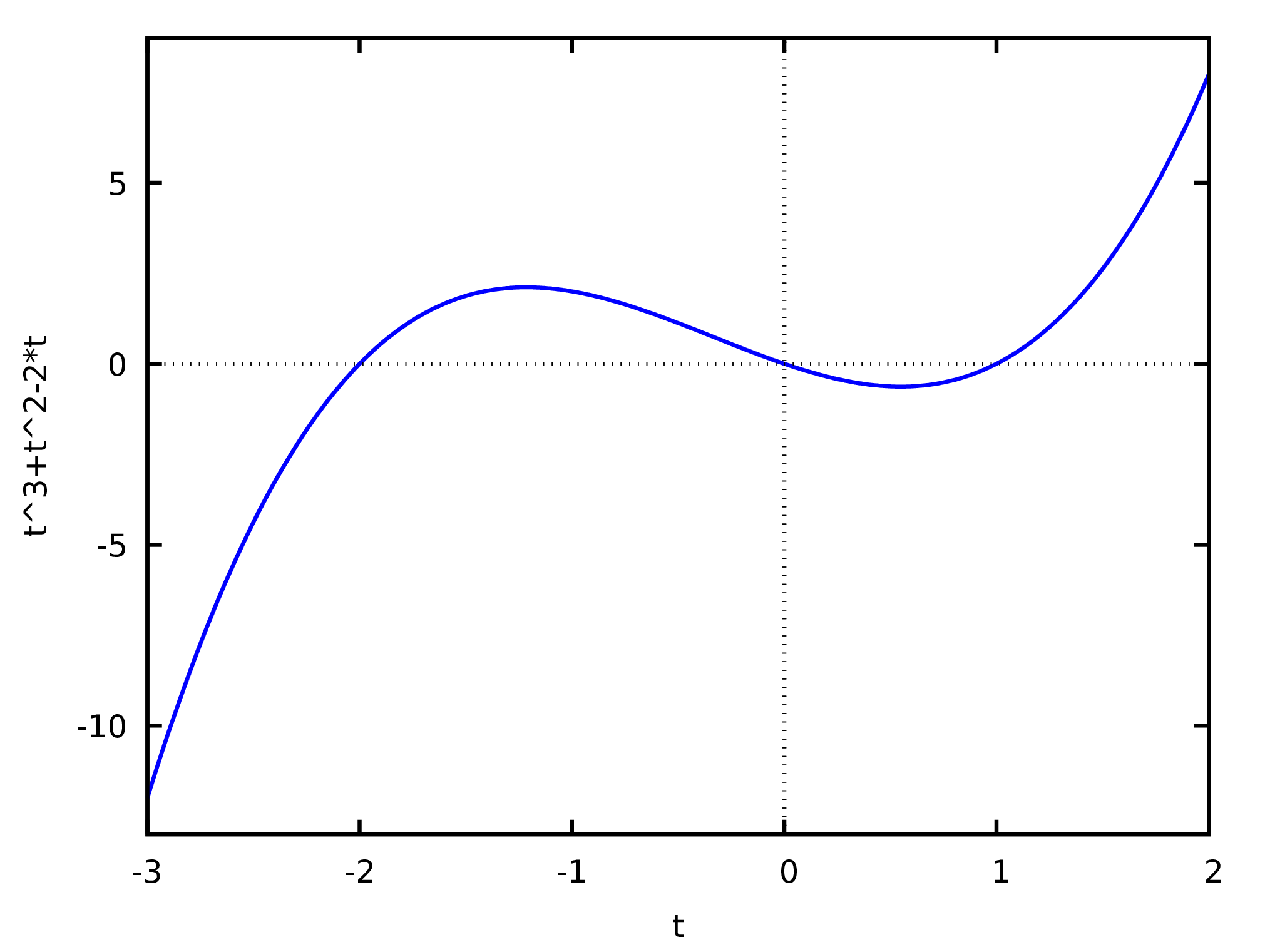
(%i75)plot2d (t^3+t^2-2*t,[t,-3,2])$
Figure 2: Plot of the polynomial .
The result of (%i74), shown in Figure 2,
will appear in a separate window. Moving the mouse over the plot, the
coordinates of the point where the cursor is are shown.
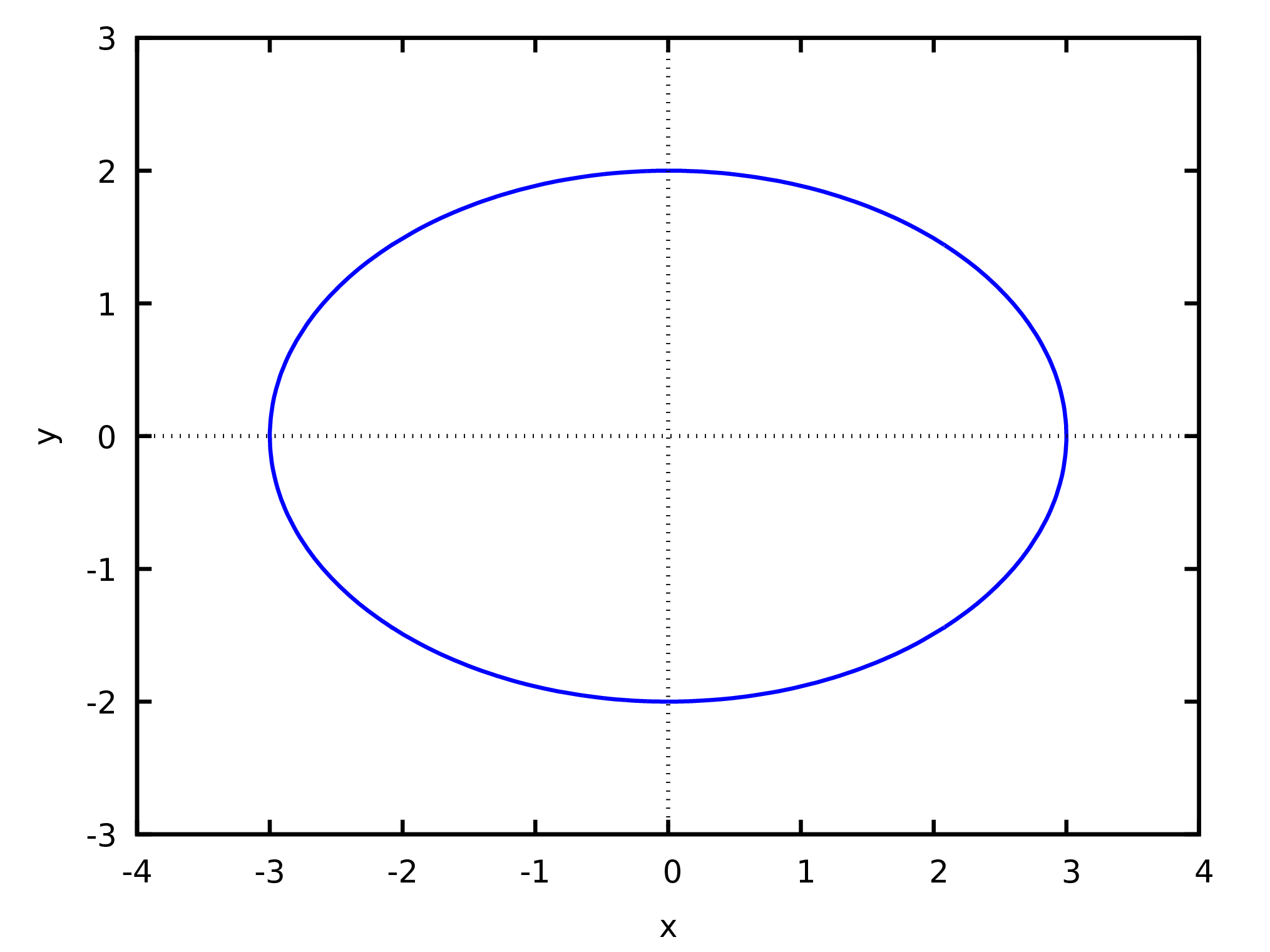
The expression to plot can also be an equation with 2 variables. In
that case it is necessary to give ranges of values for those two
variables, as in the following examples that plots the ellipse shown
in Figure 3.
In the command (%i75), the semicolon at the end shows the
result of the command, which could be a list o graphic files
created. In this case the result false means that no files were
used. Depending on the plot format used and the type of graphic, files
might be created and listed in the result.
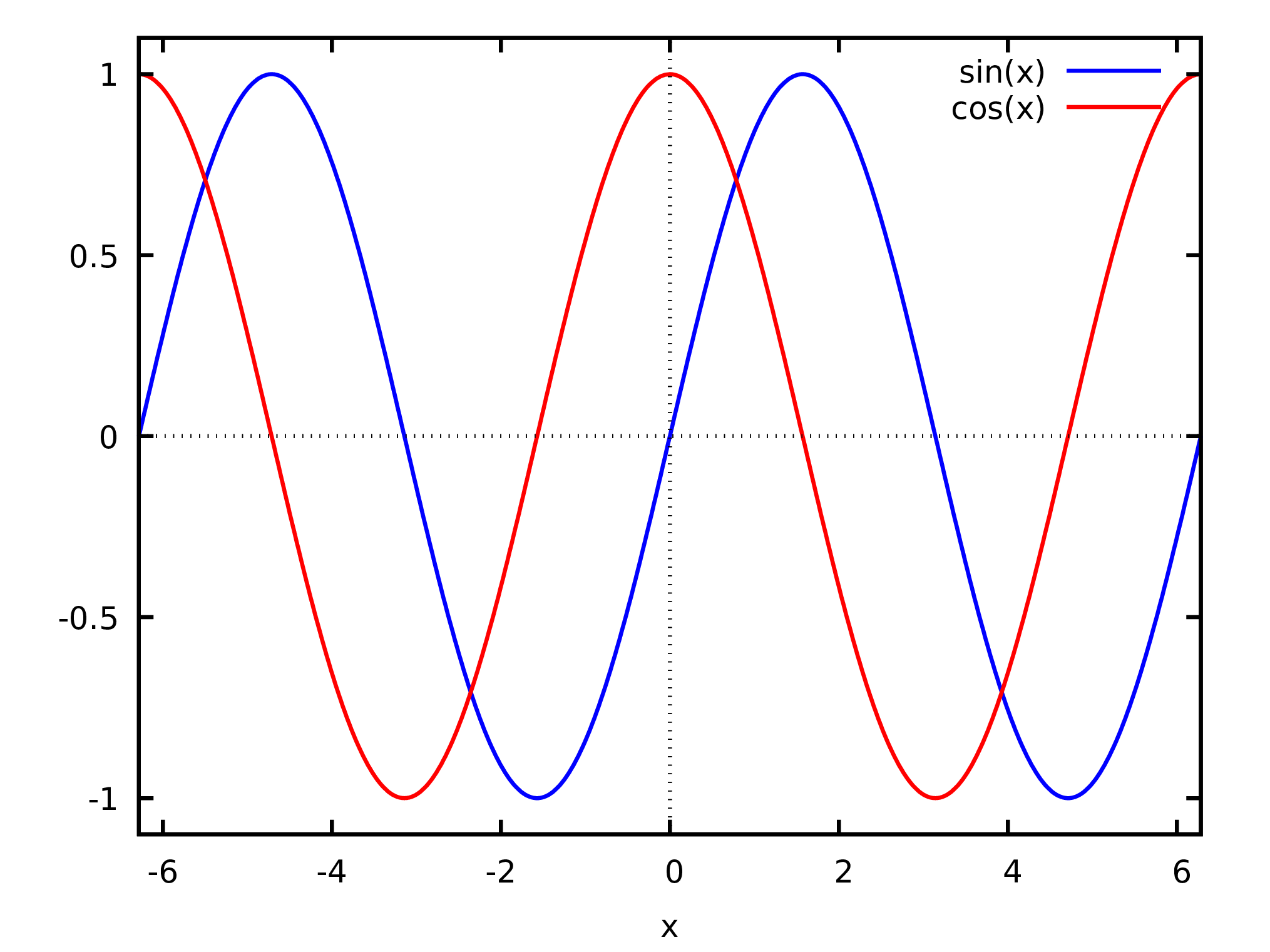
To plot several functions in the same window, those functions must be
placed inside a list. For instance, the following command shows the
plots of functions sine and co-sine.
It would be enough to simply give the names of the functions, as in
[sin, cos]. Provided they are functions of only one variable,
plot2d will input into them the values of the variable, within
its interval defined by [x, -2*%pi, 2*%pi].
The resulting plot is shown in Figure 4. In
the cases when you would like to plot functions that you defined, it
is more fool-proof to just give the name of the function, making sure
that it depends on only one input variable. In the cases when your
function gives as result an algebraic expression on , it is
equivalent to use or ; but in the cases when does not
result in an algebraic expression of , that will fail.
To show several points in a plot, the coordinates of the points can be
given as lists, within another, with lists of points in a
two-coordinate system. The two coordinates of each point can be given
as a list, inside another list with all the points. For example, to
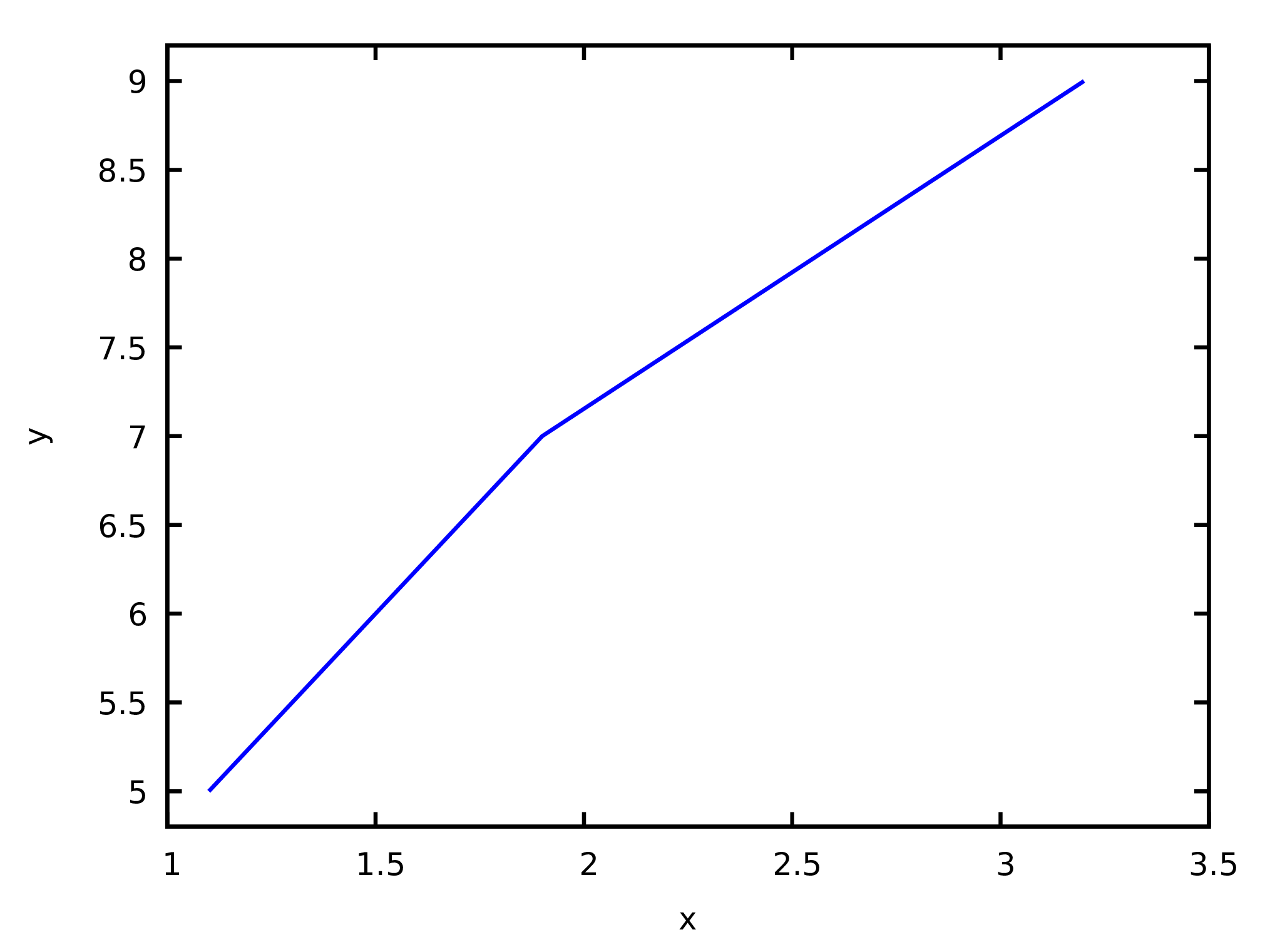
show the three points (1.1, 5), (1.9, 7) and (3.2,9) in a plot, the
points coordinates can be placed inside a list linked to the symbol
p:
(%i78)p: [[1.1, 5], [1.9, 7], [3.2, 9]]$
To create the plot, it is necessary to give plot2d a list that
starts with the keyword discrete, followed by the list of
points. In this case it is not mandatory to specify an interval of
values for the variable in the horizontal axis:
(%i79)plot2d ([discrete, p])$
Figure 5: Plot of a line defined by three points.
The plot is shown in Figure 5. By default,
the points are linked by line segments; to show only the points,
without line segments, the option [style, points] is used.
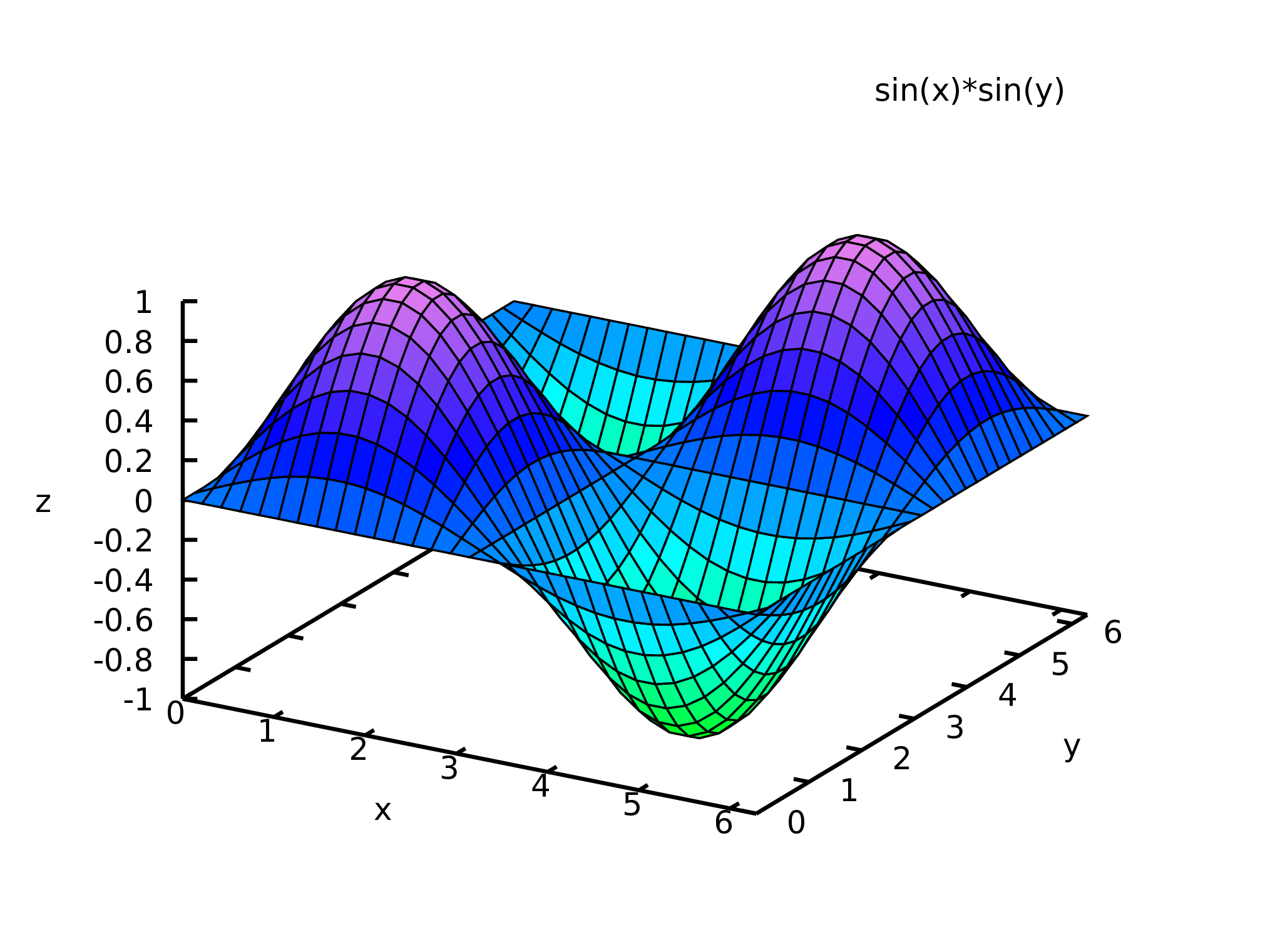
Command plot3d is used to plot functions of two variables. For
example, the following command creates the plot shown in
Figure 6:
Moving the mouse over the plot, while its left-side button is pressed,
the surface will be rotated showing how it looks from different sides.
The command plot3d also accepts a list of several functions to be
plotted in the same window. It is also possible to give a list o 3
functions of 2 parameters, that define the 3 components of a position
vector that describes a surface (parametric plot).
Both plot2d and plot3d accept the options
pdf_file, png_file and ps_file which are used
to save the plot into a file in PDF, PNG or PostScript format. For
instance, the following command saves the plot produced by command
(%i74) into a PNG file:
The command does not show the plot but shows a list with the file
created, in this case a PNG file. The initial characters "./"
indicate that the file named "plot1.png" is located in the current
directory where Maxima is running. If you don't give any initial
characters "./" and you finished the plot2d command with a
semicolon, the output will show you in which directory the file was
placed, in a default directory.
There are many other options for plot2d and plot3d, as
well as other graphic functions, which are explained in the Maxima
manual.
14 Functions
In Maxima what is usually referred to as a function is a program with
some input arguments and an output. Those functions can be defined
using Maxima's syntax or using Lisp commands. It is even possible to
redefine any of the functions mentioned in previous sections; for
instance, if in the Maxima version being used some function has a bug
that has already been fixed in a more recent version, it is possible
to load the new version of the function and, unless it introduces
conflicts with other older functions, it should work correctly.
Maxima functions are normally called by giving their name followed by
its input inside parenthesis, as in diff(cos(x),x). Functions
with only one input argument can also be defined to be used just by
giving their name before or after their argument, as in 34! which
computes the factorial of 34; the name of the function is ! and 34 is
its input argument (see documentation for prefix and
potfix). And functions of two input arguments can be defined to
be used by just giving their name in between the two arguments, as in
3*7 (see documentation for infix).
As a first example, let us create our own version of the factorial
function, which we will name fact:
(%i82)fact(n) := if n <= 1 then 1 else n*fact(n-1);
(%o82) fact(n) := if n <= 1 then 1 else n fact(n - 1)
(%i83)fact(6);
(%o83) 720
It is not necessary to use any command to return the output, since the
output of the last command in the function will become the output of
the function. A function can call itself recursively as it has been
done in this example.
Several Maxima commands can be grouped together by placing them inside
parenthesis and separating them by commas. Those commands are run
sequentially and the result of the last command will be the result of
the whole group. Each command can be indented and can expand more than
one line. The following example defines a function that adds all the
arguments given to it:
A list was used as the argument for the function, which makes the
function accept any number of input parameters (or none) and all the
arguments given will be placed in a list linked to the local symbol
v. Function block was used to define another local
symbol s, initially linked to the value 0, which by the end of
the function will be linked to the sum of the input variables. The
first element given to block must be a list, with the names of
symbols that are to be considered local to the function, each one with
or without an initial value, and the remaining commands after that
list define the function. The function for iterates the local
variable i ---in this case from 1 up to the length of the
list--- with increments, by default, equal to 1 (option step
can be given to modify the default value of that increment). After the
for loop, we gave the name of variable s, to make it
become the output of the function.
When an unknown function is used no errors are triggered; instead, the
unknown function is echoed in the output; for example:
Most of Maxima functions behave the same way when they fail to give
a result. For instance,
(%i88)log(x^2+3+x);
2
(%o88) log(x + x + 3)
That behavior is very useful, because it makes it possible to
change the value of the arguments later on and to reevaluate
the function. For example, substituting
the symbol x in this last result by the
floating-point number 2.0, the logarithm
would then be computed and its numerical value shown: